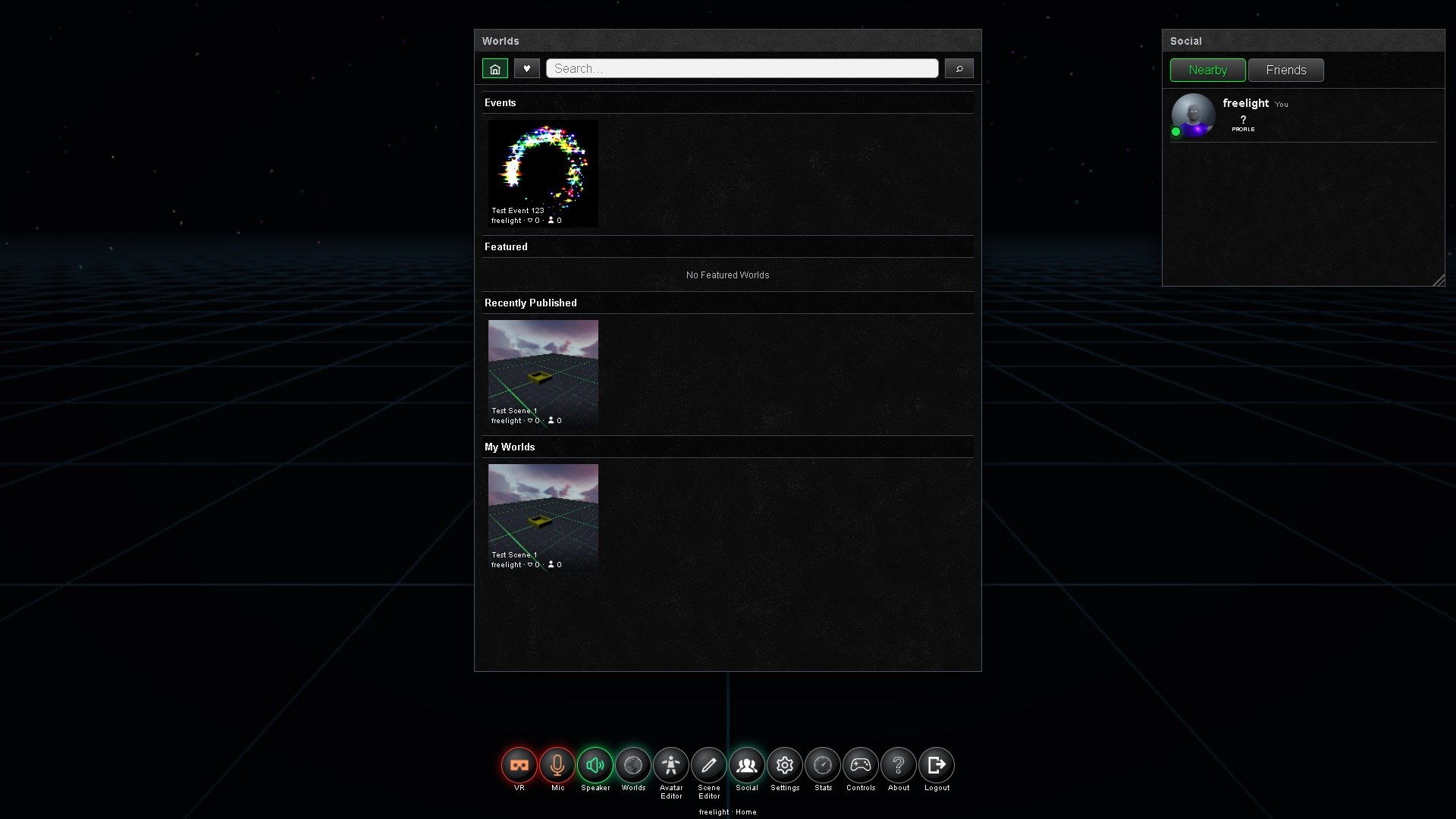
Use this page to understand the main AdmazoVerse areas before installing, joining a world, or creating content.
Wiki / Basics
What You Can Do
AdmazoVerse is built around shared worlds, customizable avatars, creator inventory, and live events. Most users start by joining a public world, then customize their avatar and save favorite places.
Worlds
Shared 3D spaces where people meet, explore, attend events, or build scenes.
Avatar
Your visible character. You can change outfits, attach accessories, and upload supported avatar content.
Inventory
Items you own or have access to, including avatar pieces, scene objects, and uploaded content.
Store
The place to find items that can be used in outfits or scenes.
Avatar Editor
The user-facing editor for outfits, clothing, accessories, and avatar preview.
Scene Editor
The user-facing editor for creating worlds, arranging scene objects, and preparing events.
Join a world from the world list or an invitation link.
Open Settings if you need to adjust graphics, audio, controls, comfort, or account options.
Navigation Notes
The exact labels may vary as the client evolves, but the main flow should stay familiar: use the home or world browser to enter spaces, the Avatar Editor to manage your look, the Store to find items, and Settings for preferences.
If a button is unavailable, check whether you are signed in, whether the item belongs to your account, or whether the world or event requires permission.
Chat, Direct Messages And Notifications
The Chat button on the control bar shows or hides the chat window, at home and in worlds. Whether it is open is remembered on your device.
World
In a world: chat with everyone there. Only available inside a world.
DMs
Private conversations with your friends, available everywhere, including the home area. You have one conversation per friend, and messages are kept for up to a year. Start one with New message, or with Message on a friend in Social or on their profile.
Unread
A green number on the World or DMs tab shows how many messages came in while you were not looking at that tab.
Remove
The × on a conversation removes it from your list only. Your friend keeps theirs, and it comes back if either of you writes again.
A new direct message or friend request shows a notification card at the top right for 10 seconds, with the person's picture and name. Click a message card to open that conversation, or a friend request card to accept the request. Scripts in a world can show these cards too (see ScriptAPI: Notifications).