Create a new world, place objects, adjust lighting and environment, edit together with friends, and publish changes from the Scene Editor.
Wiki / Scene Editor
Create A New World
Open Scene Editor from the dashboard or creator tools.
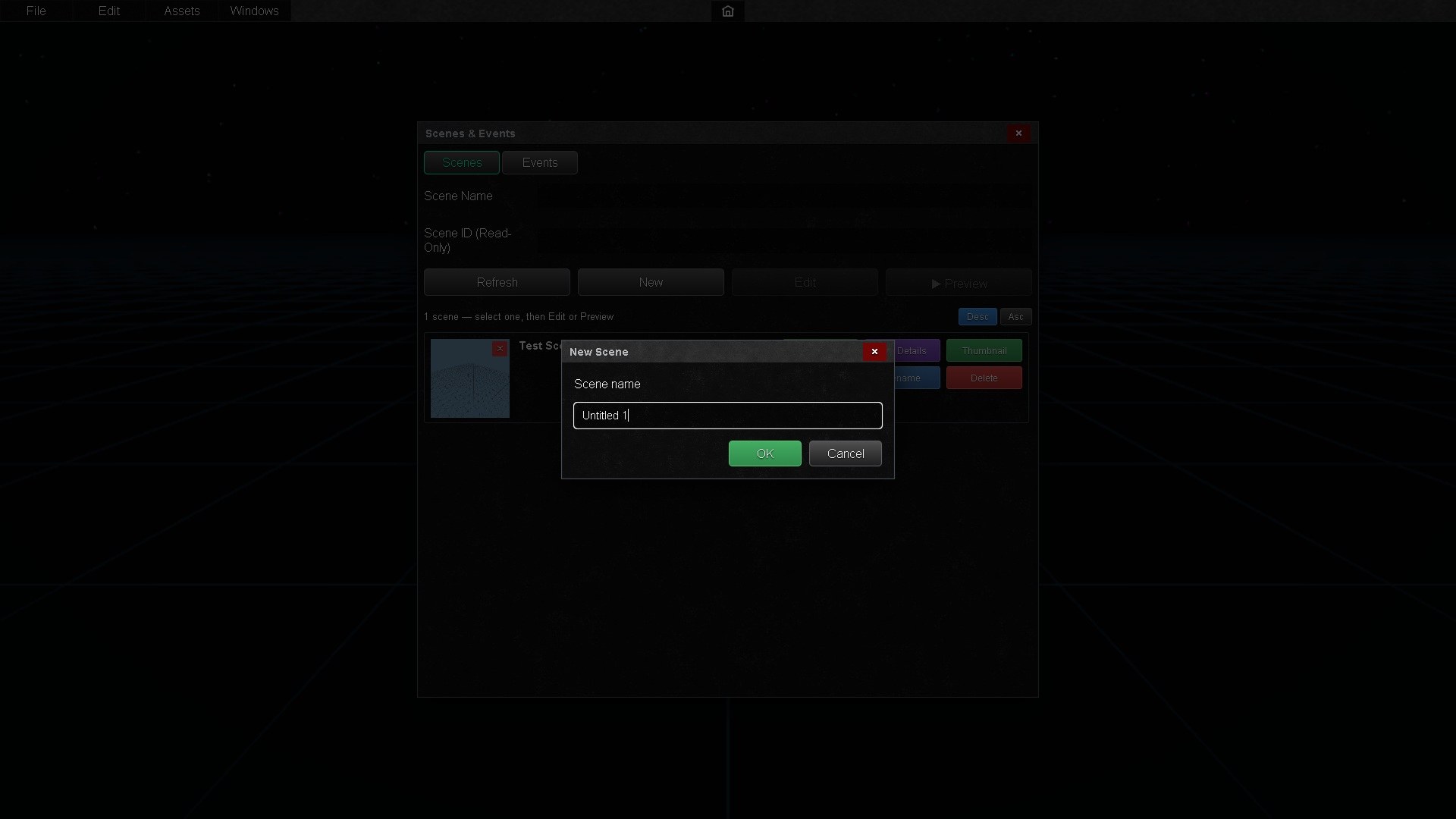
Select Create New World or New Scene.
Choose a blank template or starter template.
Enter a name, description, thumbnail, and visibility setting.
Create the world and wait for the editor to load.
Build The Scene
Add objects from your inventory or the Store.
Move, rotate, and scale selected objects with editor controls.
Use the hierarchy or object list to organize content.
Adjust object settings such as physics, collisions, visibility, media, lights, or interaction options.
Set spawn points and other visitor-facing basics.
Save or publish when the scene is ready.
Blend Shapes On Models
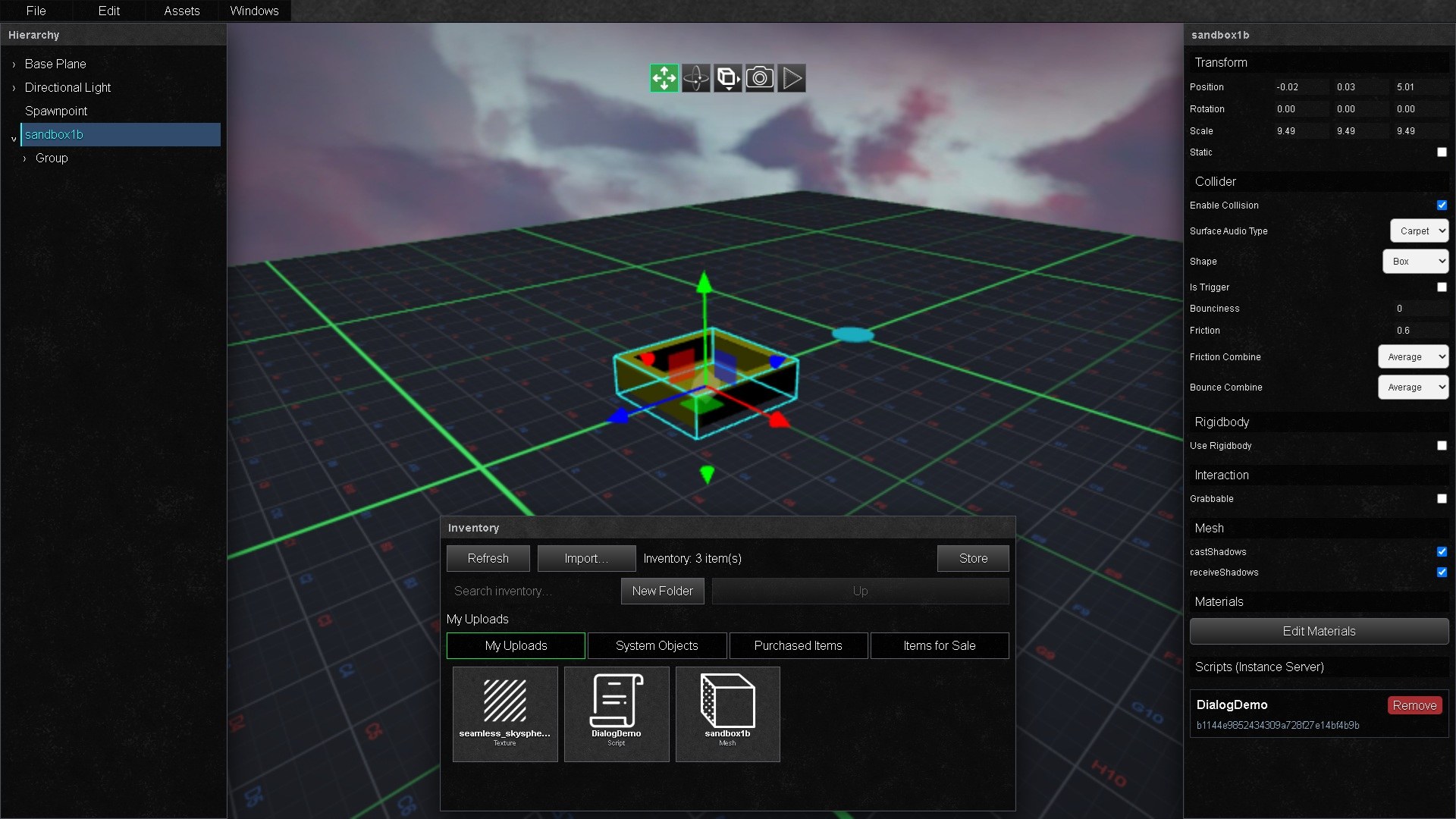
When a model has blend shapes (morph targets, shape keys) built into it, selecting it shows a Blend Shapes section in the Inspector, one row per shape, by the name it has in the model.
Value slider
The shape's resting weight, 0 to 100%. This is how the model looks when the world opens.
Auto play
Off by default. On: when the world opens, the shape goes from its value to the far end (100%, or 0% when the value is above 50%) and back, smoothly.
Loop
Off: one cycle, then it rests at its value. On: it keeps going.
Seconds
How long one cycle takes (1 by default).
▶ / ■
Previews it playing in the editor without changing Auto play.
The settings are saved with the scene. In the world everybody sees the same weights at the same moment, players who join later too. Scripts can change all of it while the world runs (SetBlendShape, PlayBlendShape, StopBlendShape, SetBlendShapeLoop, SetBlendShapeSeconds): see ScriptAPI → Blend Shapes and the BlendShapeControl example. To keep blend shapes when exporting from Maya, tick Deformed Models → Blend Shapes in the FBX export options.
Edit Together
Build a scene with your friends at the same time. Up to 5 people can be in a scene's edit session at once (the owner included), and you can make as many friends editors as you like.
Add an editor
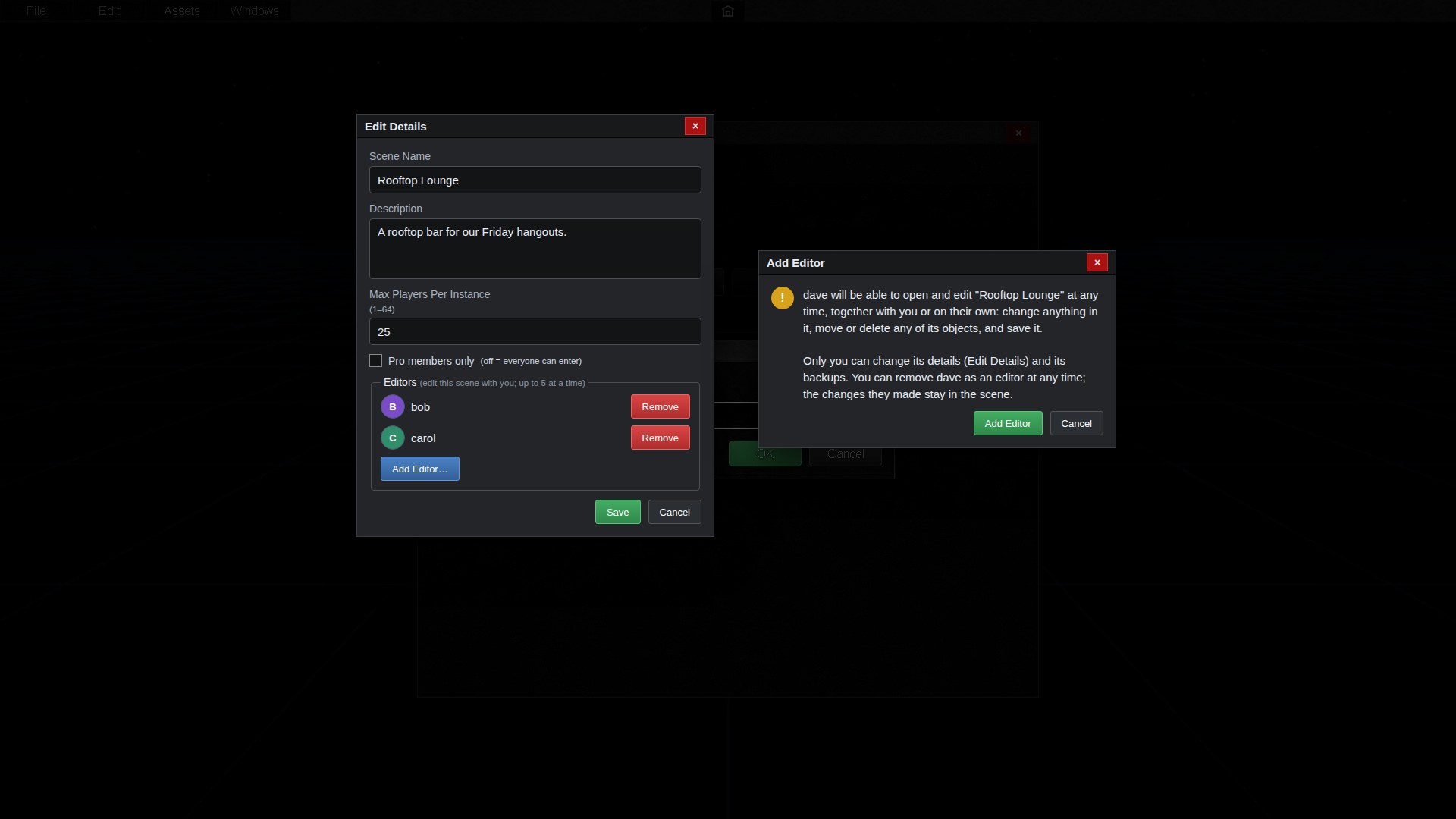
Open the Scene Editor and choose Edit Details on one of your saved scenes.
Under Editors, choose Add Editor… and pick a friend from your friends list.
Read the warning and confirm. Your friend can now edit the scene at any time: change anything in it, move or delete its objects, and save it. Only you can change its details and its backups.
To take it back, choose Remove next to their name. If they are editing at that moment they leave the editor at once; the changes they made stay in the scene.
Edit a scene together
Editors find the scene in the Scene Editor under the Shared tab and open it with Edit. The owner opens it as usual.
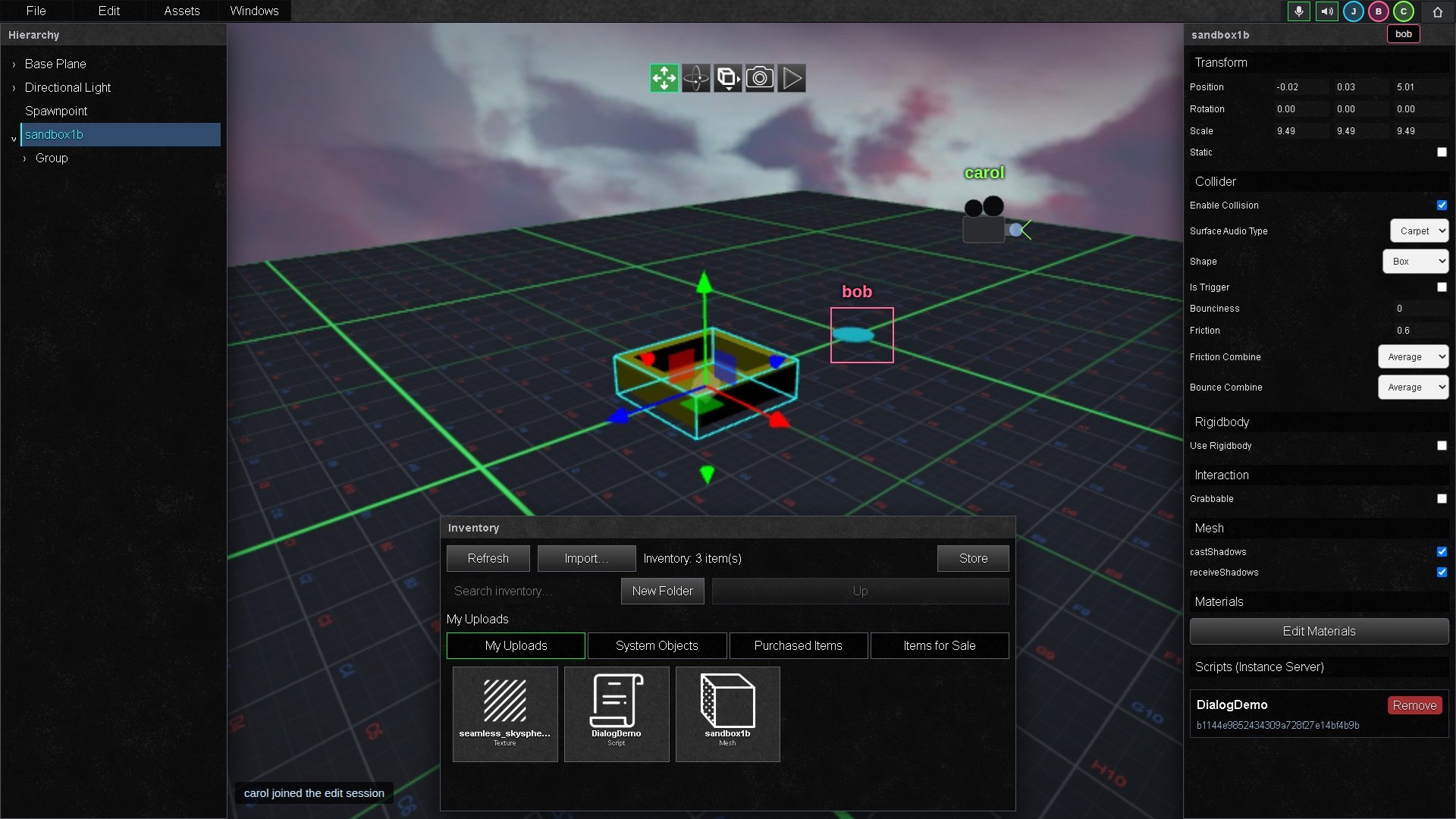
Everyone in the session sees the others' changes as they happen: objects being added, moved, edited and deleted, scene settings and scripts.
The people in the session are shown at the top right of the menu bar, next to Home. Point at a picture (or tap it) to see the name. Next to them are your own microphone and speaker buttons; in the editor everyone hears everyone at the same volume, wherever their camera is.
Each person's editor camera is shown as a small movie camera with their name, in their colour, on desktop, mobile and in VR.
An object someone has selected gets an outline and their name in their colour. Nobody else can select it until they let it go.
Undo and Redo only take back your own changes, never someone else's.
Anyone in the session can save. Saves happen one at a time, and everyone is told who saved. If everybody leaves without saving, the unsaved changes are lost, just like editing alone.
Each editor only ever sees their own inventory. Objects other people put into the scene load for everyone.
Dynamic Sky And Weather
All sky types (colour, stars, 360° pictures, HDR and EXR panoramas) and sky reflections are explained in Skies.
In Windows → Scene Settings, set Sky to Dynamic sky for a realistic, moving sky with clouds, weather and day and night. Everyone sees the same sky at the same moment, in every instance of the scene, and everyone editing the scene together sees your changes too.
Weather
Pick a preset (Clear, Partly Cloudy, Cloudy, Overcast, Rain, Thunderstorm, Snow, Hail, Dust Storm, Foggy) and choose Apply, then change anything you like. Turn on Weather cycling to let the weather change by itself, choosing which kinds of weather, how long each lasts and how slowly it changes over.
Time of day
Off by default: the sky stays at the hour you set. Turn it on for a moving day, either a faster day (one day lasts as long as you choose) or the real time in a time zone you pick.
Sun, moon, stars
Colour, size, edge softness and glow of the sun and moon, light shafts through the cloud gaps, the moon's phase (from today's date, or your own), and stars at night.
Clouds
Three layers (low, middle, high), each with its cloud type (puffy cumulus, blanket stratocumulus, small altocumulus puffs, wispy cirrus, grey overcast, dark storm clouds or torn fractus), coverage, size, softness, thickness, speed and colours. Wind speed and direction move them all.
Lightning
How often it strikes, bolt and glow colours, brightness, width, branches and how much the sky flashes, with thunder.
Rain, snow, hail, dust
Falls around each player wherever they go, with its amount, size, fall speed, wind and colour. A rainbow can appear opposite the sun while it rains.
Lighting
Sky lights the scene moves your scene's Directional Light with the sun or moon and dims it under clouds; turn it off to keep your lights exactly as placed.
Sounds
Rain, hail, wind, thunder, birds by day and crickets at night are built in. Choose your own Audio items from your inventory for any of them, or None.
Scripts can change the weather and time of day while the world runs (see ScriptAPI: Weather And Time Of Day). Players set how loud the weather is in Settings → Weather.
Safe Editing Tips
Save often, especially before deleting groups of objects.
Test visitor spawn points before publishing.
Keep performance in mind: many lights, particles, media screens, and high-detail models can affect visitors.
Use private visibility while working on unfinished worlds.